01Open the app
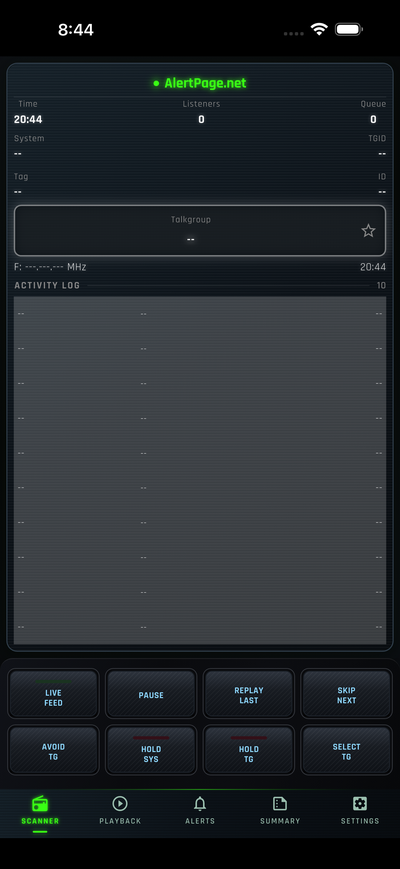
From the main Scanner screen, confirm you are on the SCANNER tab (bottom navigation).
02Open Settings
Tap SETTINGS (gear icon) in the bottom navigation bar.
Under SCANNER MANAGEMENT, tap Scanner Management (Add, edit, and configure your scanners).

03Select the scanner to remove
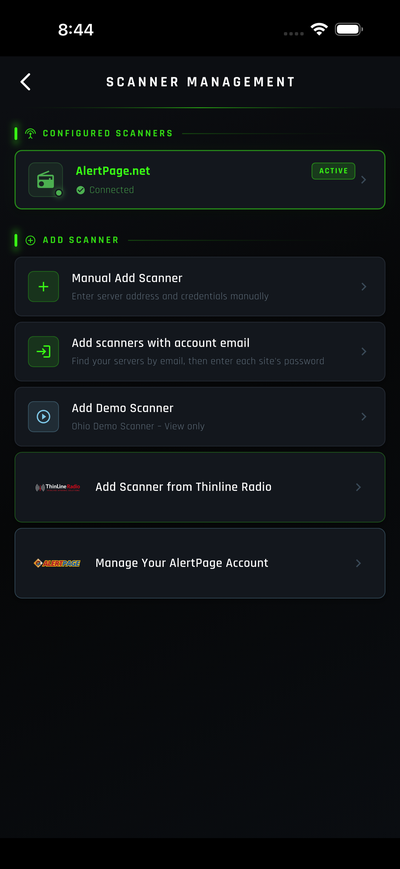
On Scanner Management, find the scanner under CONFIGURED SCANNERS (for example AlertPage.net).
Tap the scanner row to open its settings.
04Delete the scanner
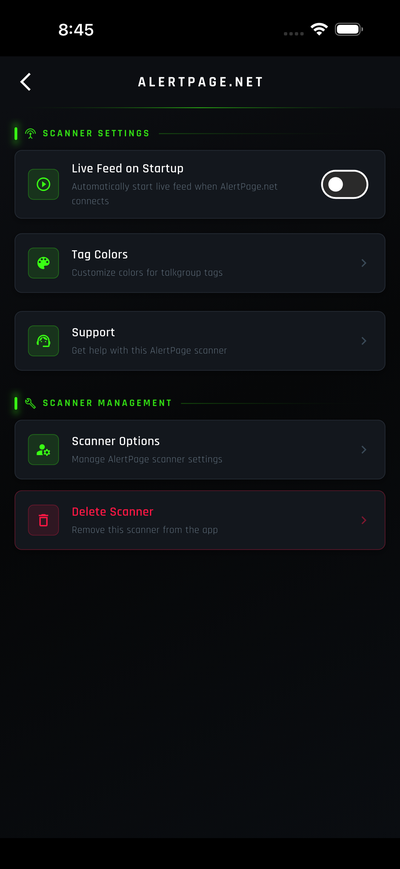
On the scanner's settings screen (e.g. ALERTPAGE.NET), scroll to SCANNER MANAGEMENT.
Tap Delete Scanner (red text with trash icon) — Remove this scanner from the app.
Confirm if the app asks you to confirm deletion.
Summary
| Step | Where to go | Action |
|---|---|---|
| 1 | Scanner tab | Open the app |
| 2 | Settings → Scanner Management | Open scanner list |
| 3 | Configured Scanners | Tap the AlertPage scanner to remove |
| 4 | Scanner Management → Delete Scanner | Remove it from the app |
After deletion, you can add a new scanner from Scanner Management → ADD SCANNER if needed. To sign in and sync scanners automatically, see the Sign In to AlertPage guide.